A cheat window that opens right inside your RPG Maker MV and MZ games.
Press C to open and close the window, just like in a game.
Get started
There are two ways to add the cheat. Pick the one that suits you.
In your browser
The quick way to add it to a game.
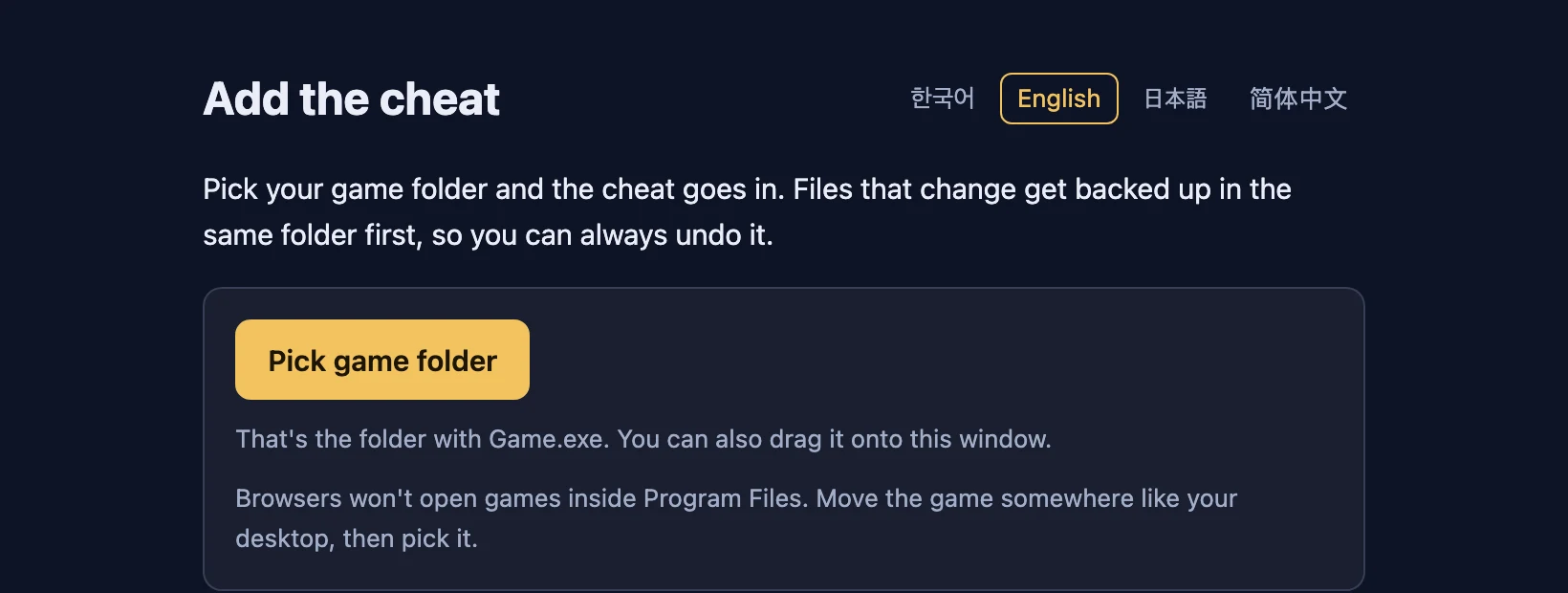
- Open the “Add the cheat” page in Chrome or Edge on your PC.
- Pick the folder with
Game.exein it, or drag it onto the page. If the browser asks to change the folder, allow it. - Press Add the cheat.
- Start the game.
- Browsers won’t open games inside Program Files. Move the game somewhere like your desktop, then pick it.
- Files that change get backed up in the same folder first, and you can undo it on the same page. Your cheat settings file stays after you undo.
- The page comes in Korean, English, Japanese and Simplified Chinese.
With the desktop app Coming soon
For patching lots of games and managing your cheat settings along with them.
- Download the app.
- Add your game folders.
- Pick the games to patch and apply your cheat settings to them.
What it can do
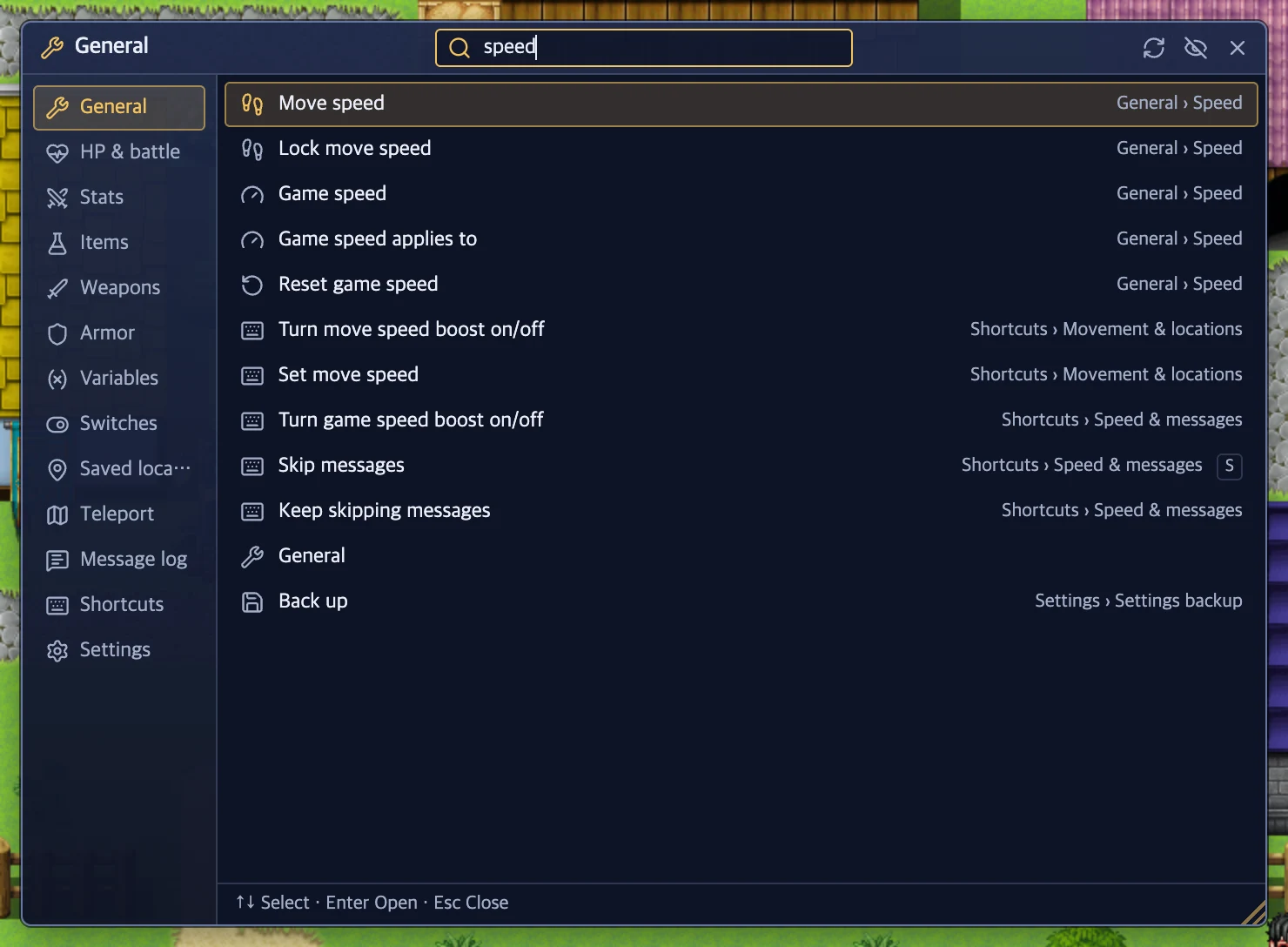
Find a feature Ctrl + K
Not sure where something is? Type a few letters and it finds panels, settings and shortcuts, then takes you right there.
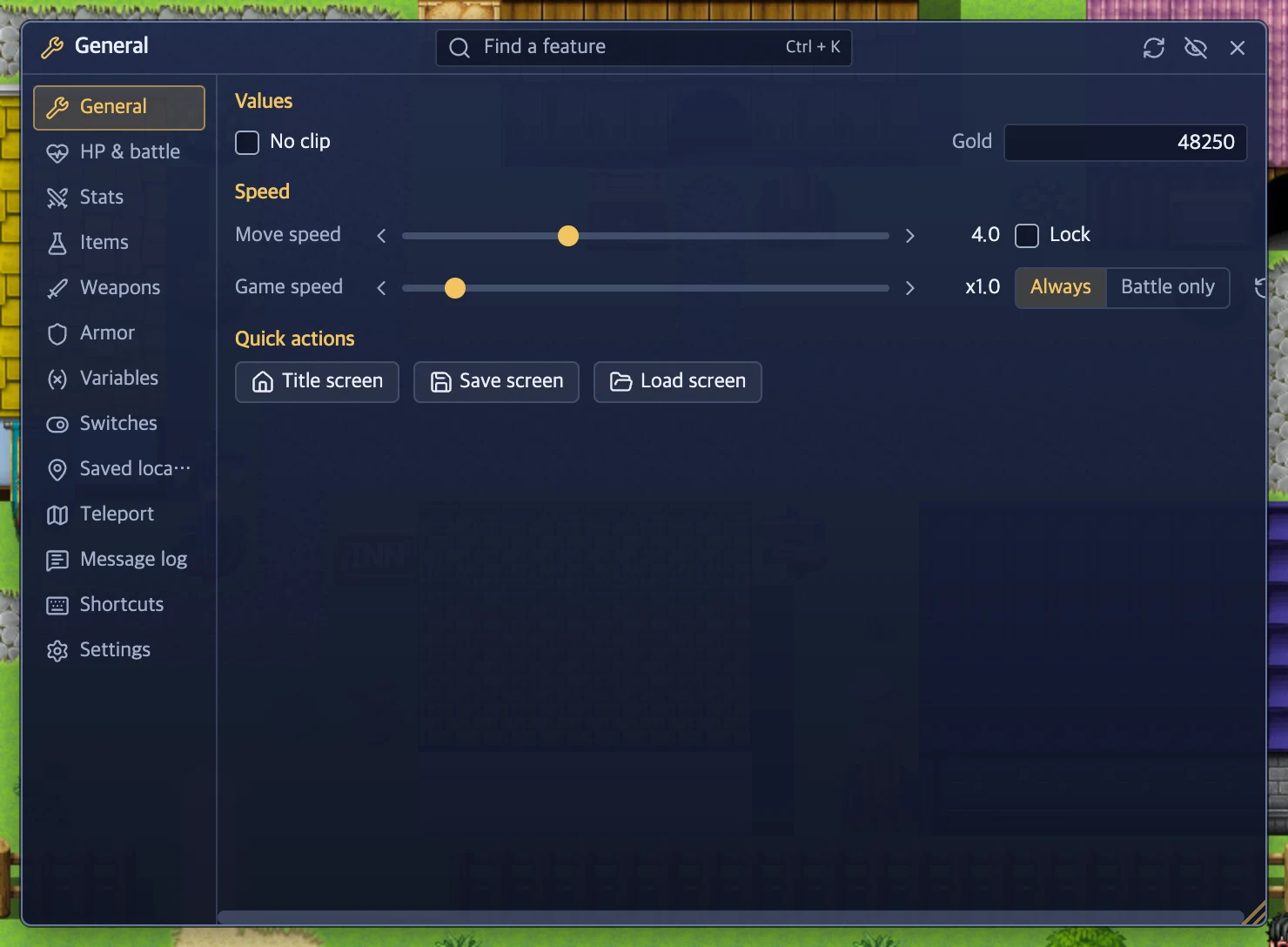
General cheats
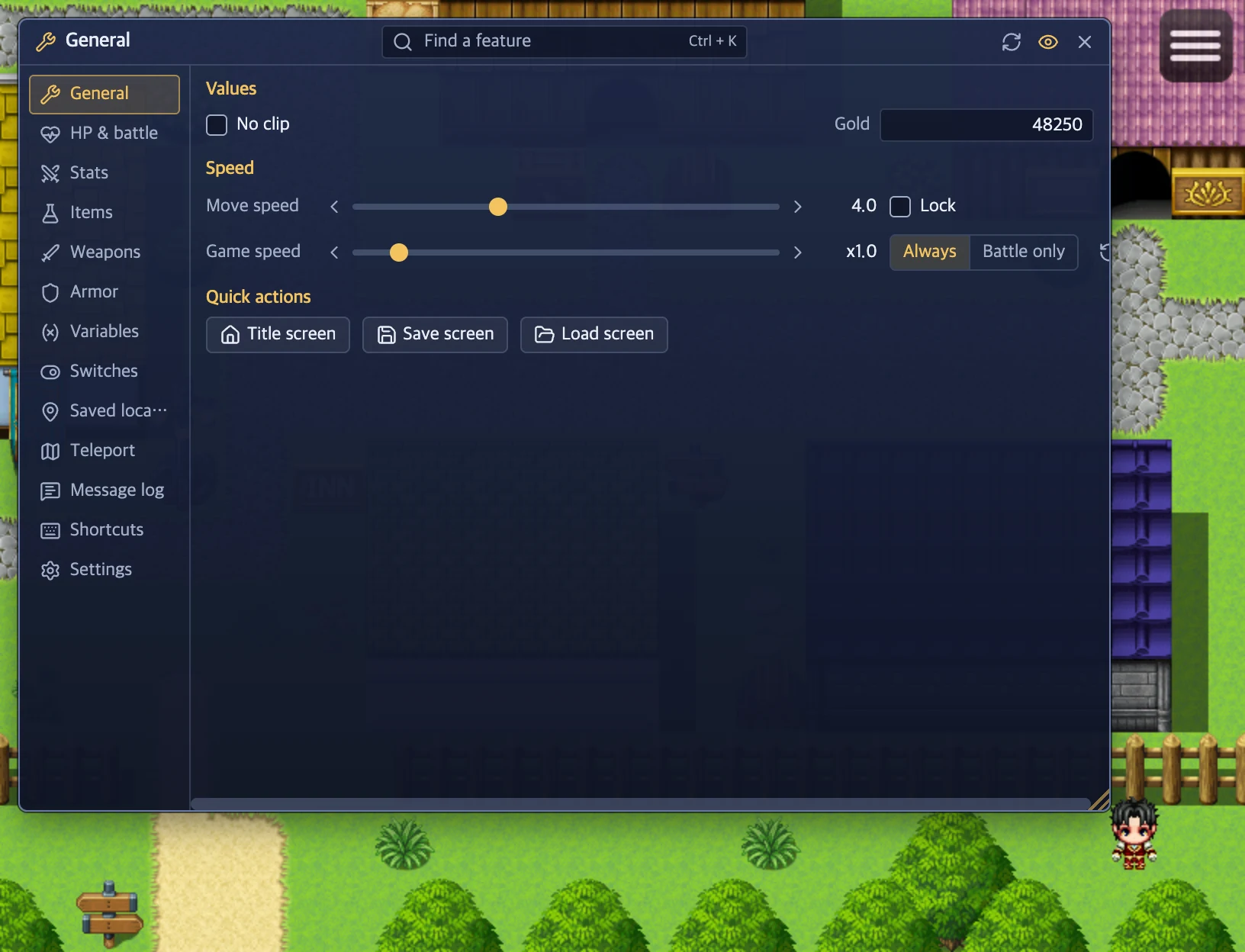
Walk through walls with No clip, and set your gold and move speed to whatever you like.
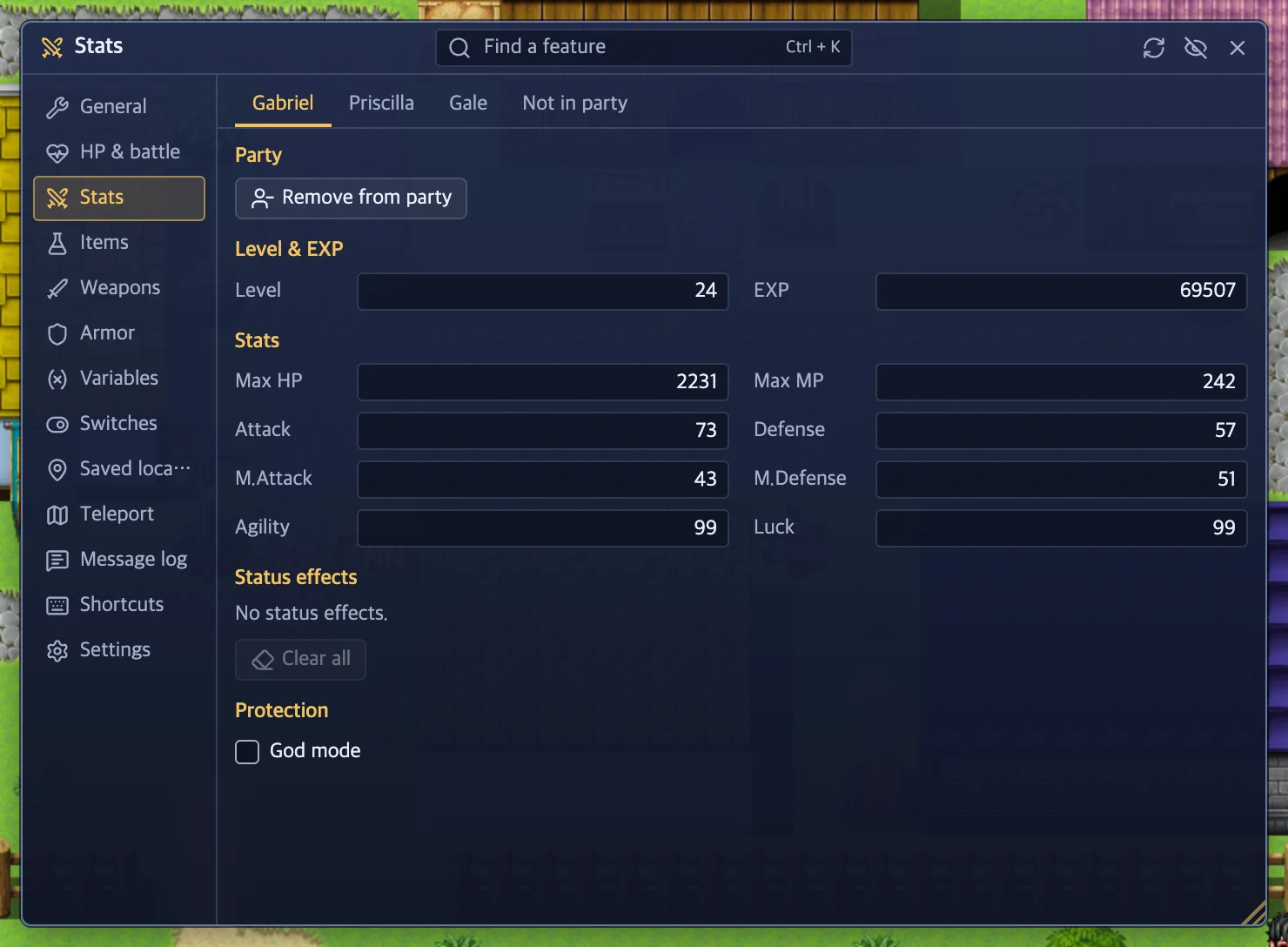
Stats
Change level, EXP and stats for each character. You can also turn on God mode, clear status effects, and add or remove party members.
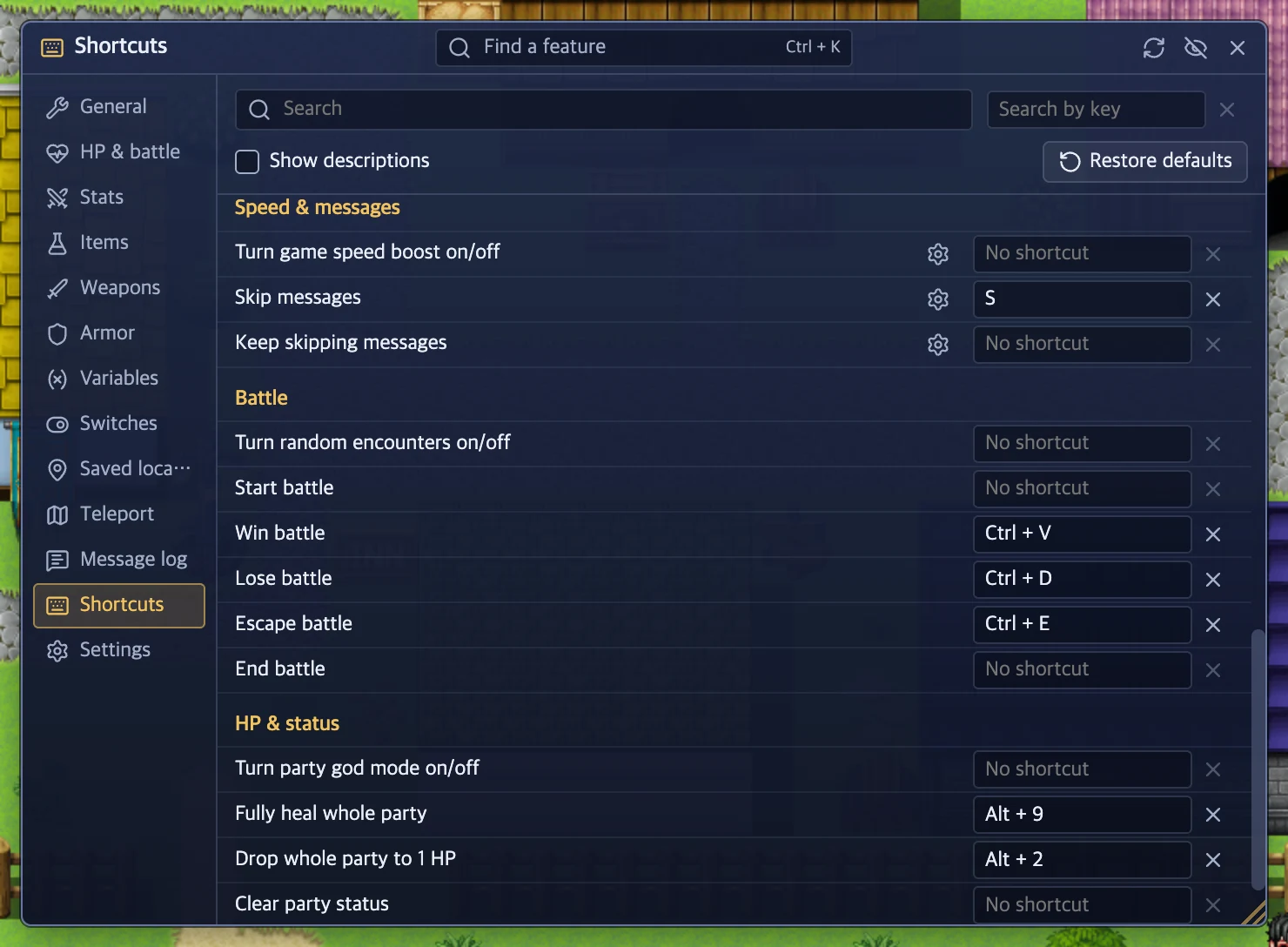
Game speed and message skip S
Run the whole game anywhere from x0.1 to x10, all the time or only in battle. Hold S and messages fly by.
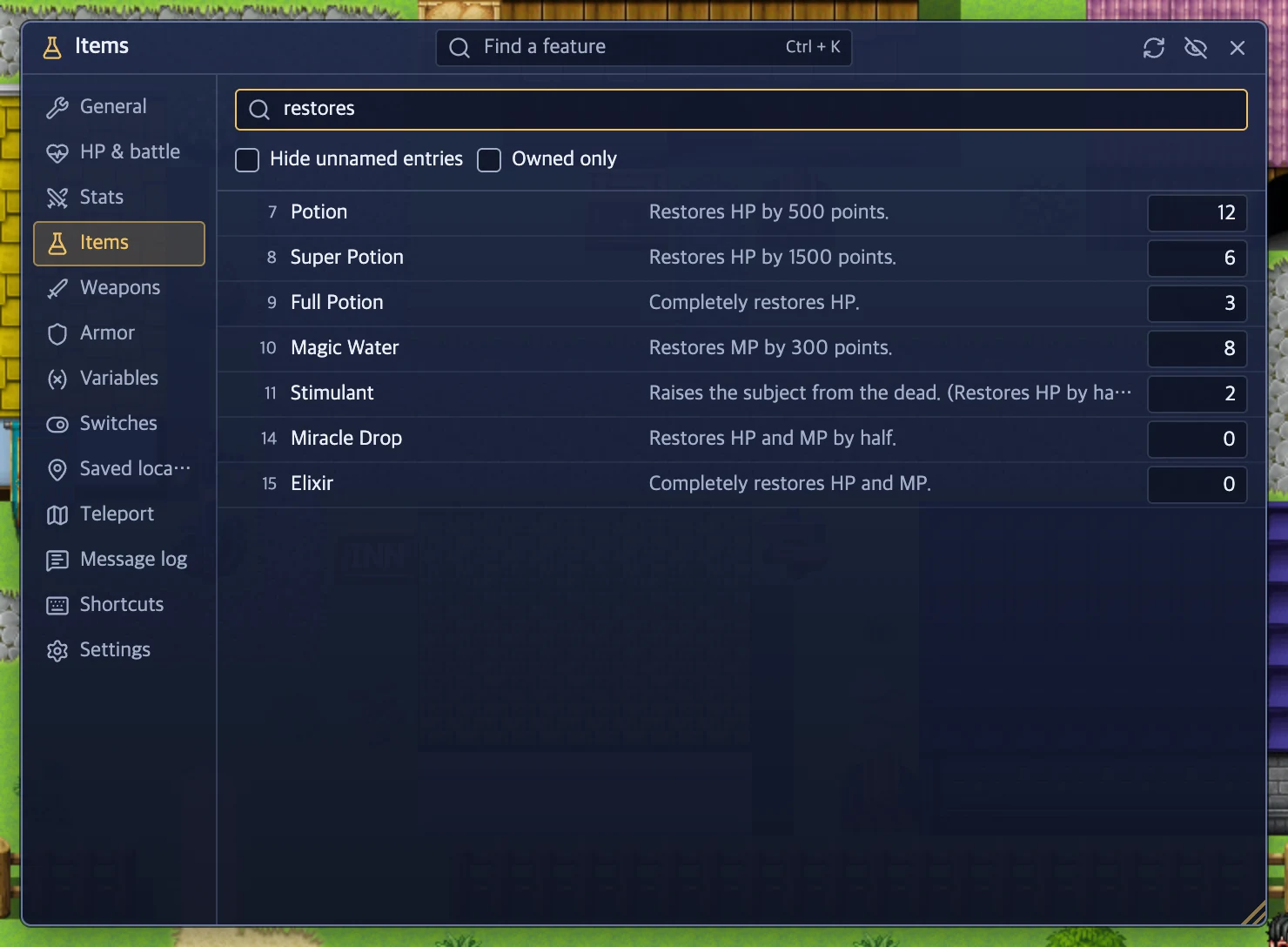
Items and equipment
Search items, weapons and armor by name or description, then type in how many you want.
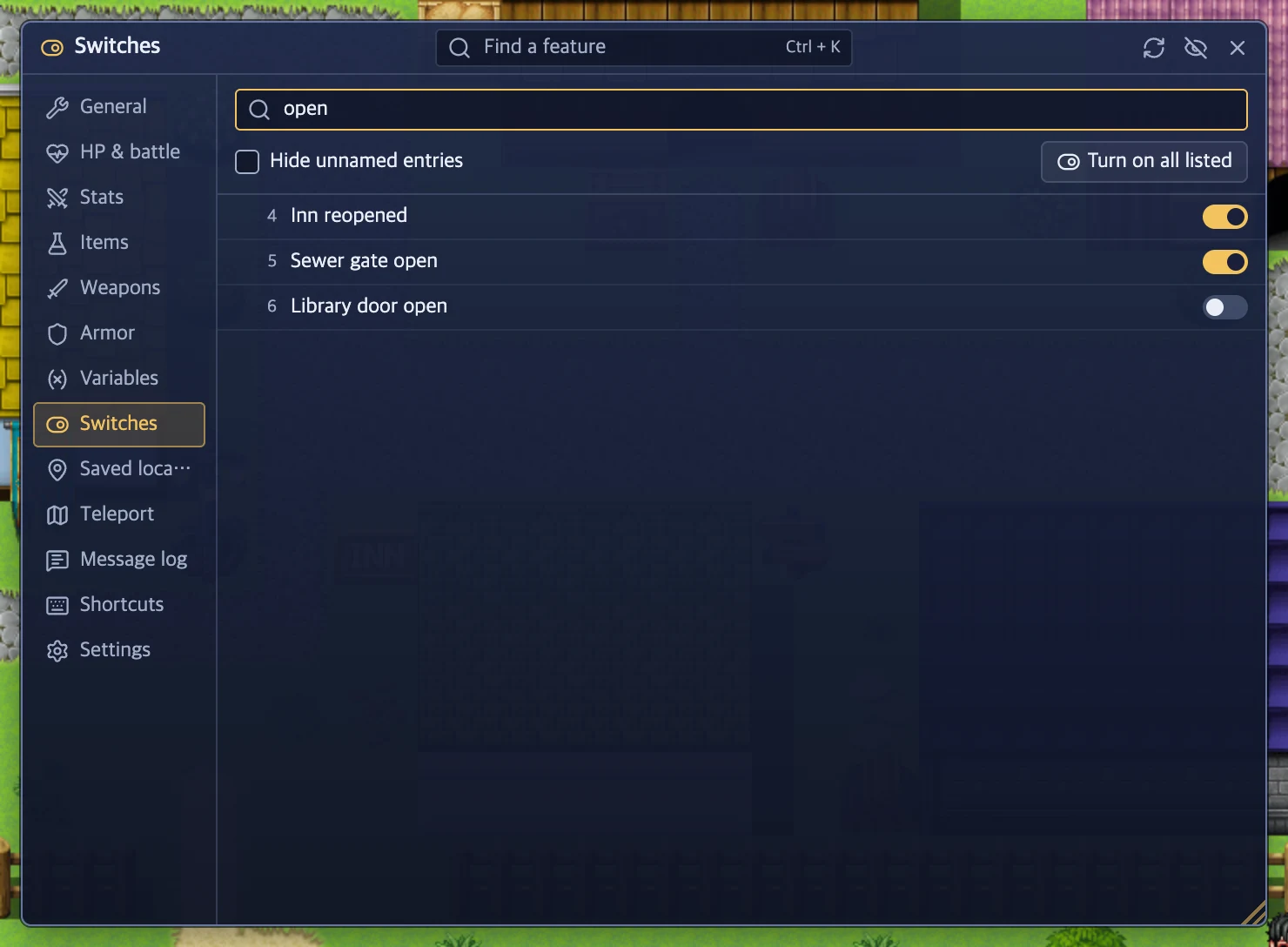
Switches
Find switches by name and flip them one by one, or everything in the list at once.
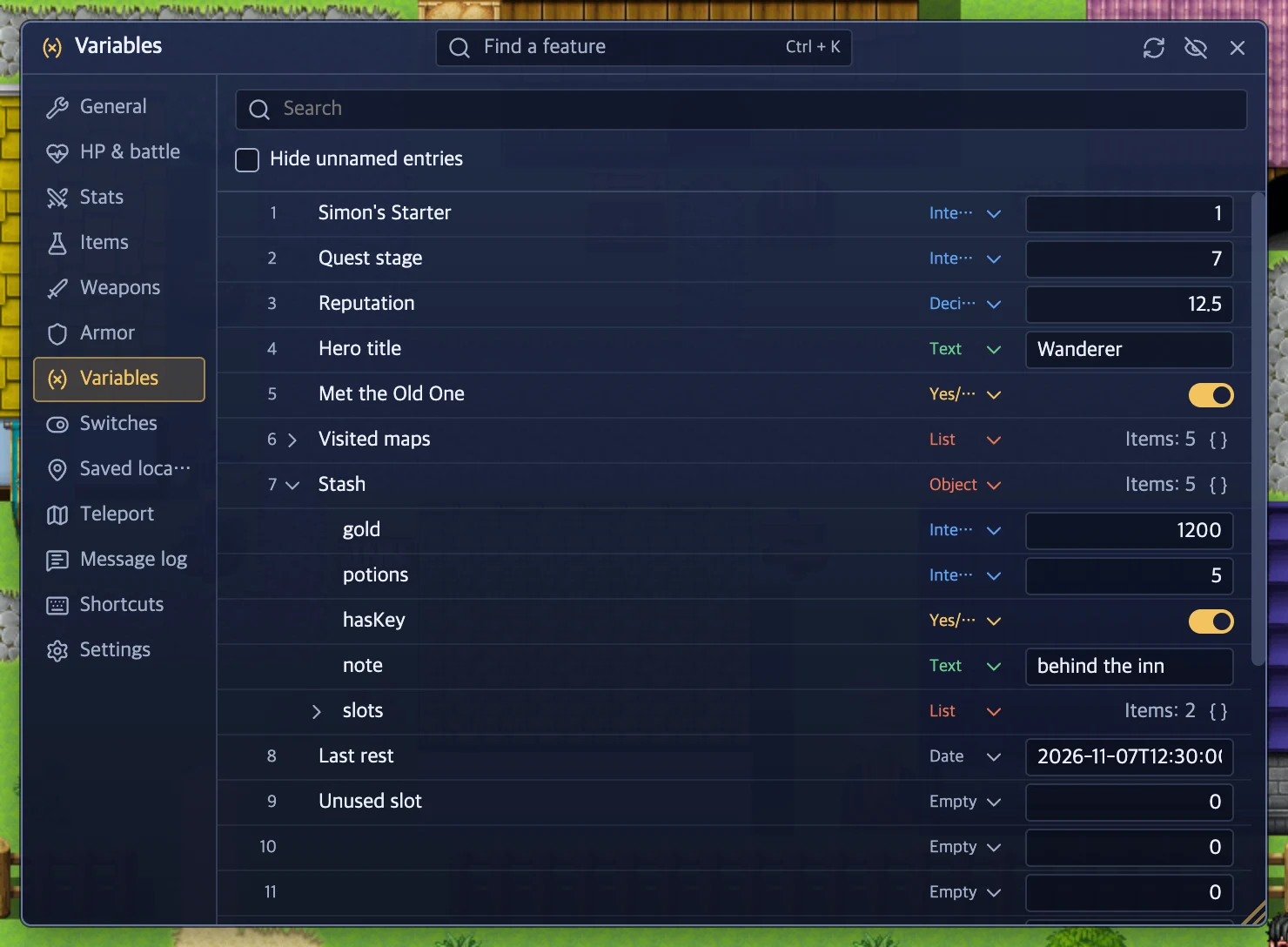
Variables
Find variables by name and edit them without changing their type. Integers, decimals, text, yes/no, lists, objects and dates all work. Open objects as a tree, or edit them as JSON.
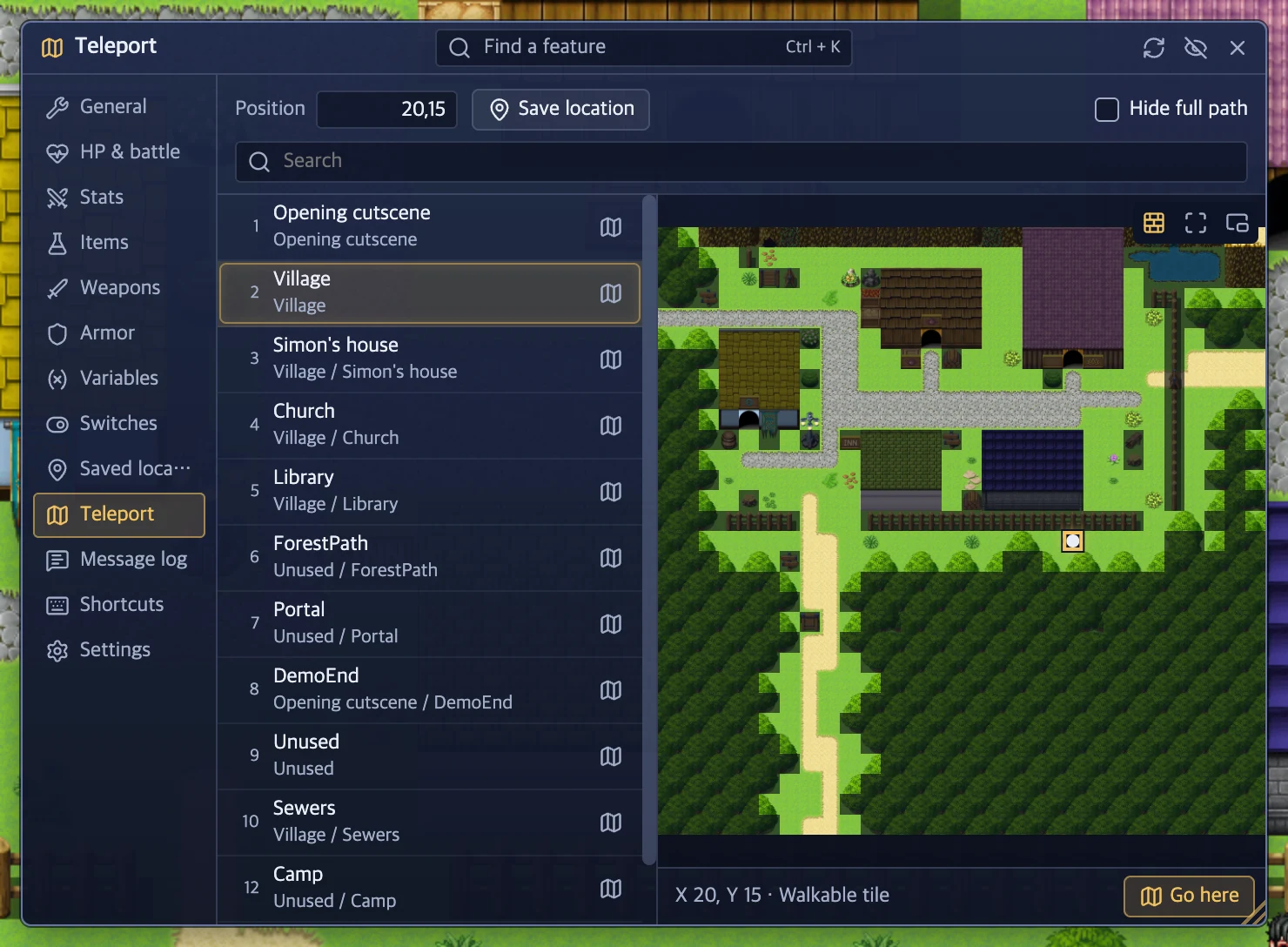
Teleport and saved locations Ctrl + T
Pick a map, click a tile on the minimap and go. Save the spots you like and come back any time.
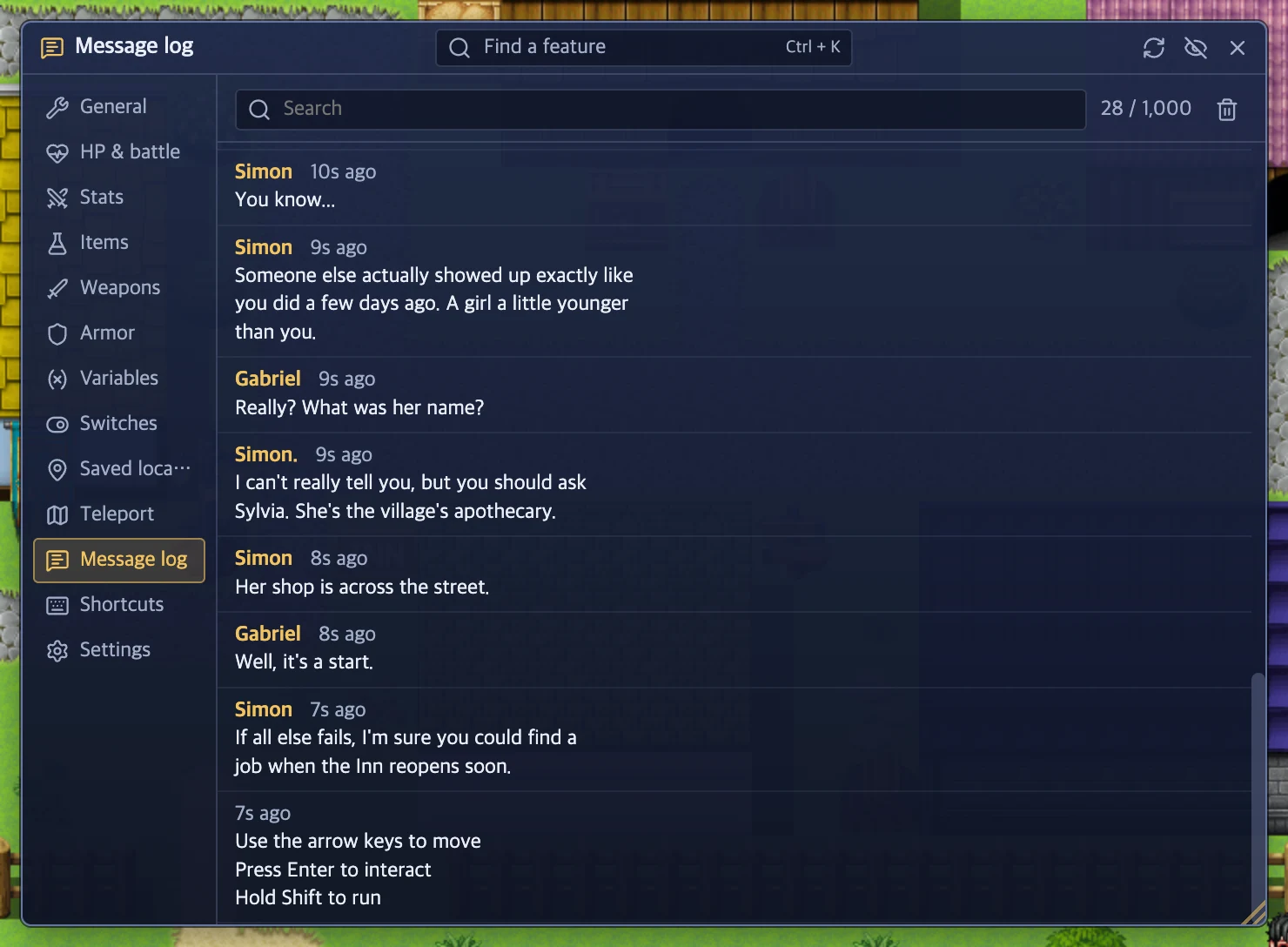
Message log H
Missed a line? Read and search past dialogue.
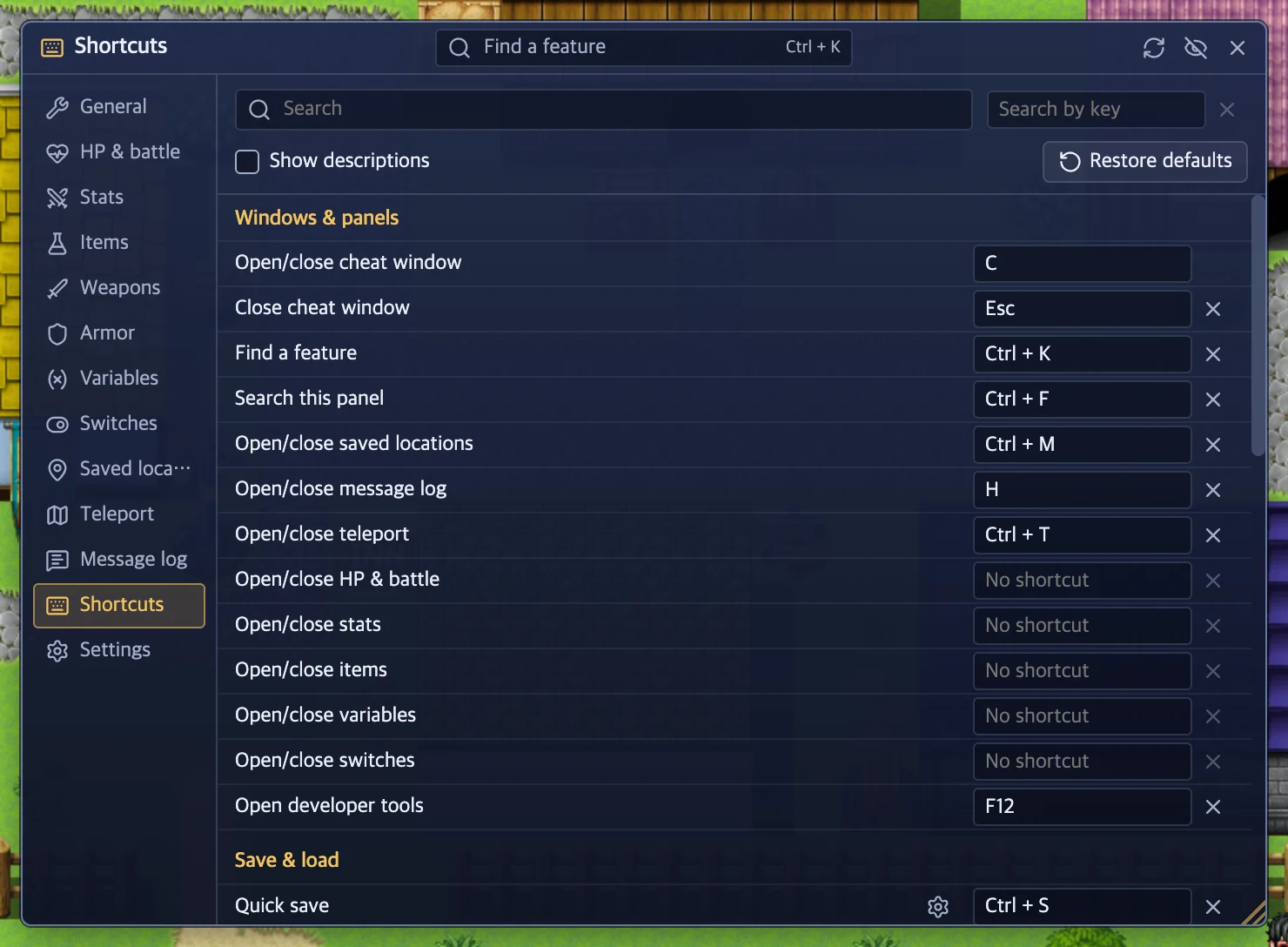
Shortcuts
Save, load, no clip, win a battle and much more with one key, without opening the window. Change any key to suit you.
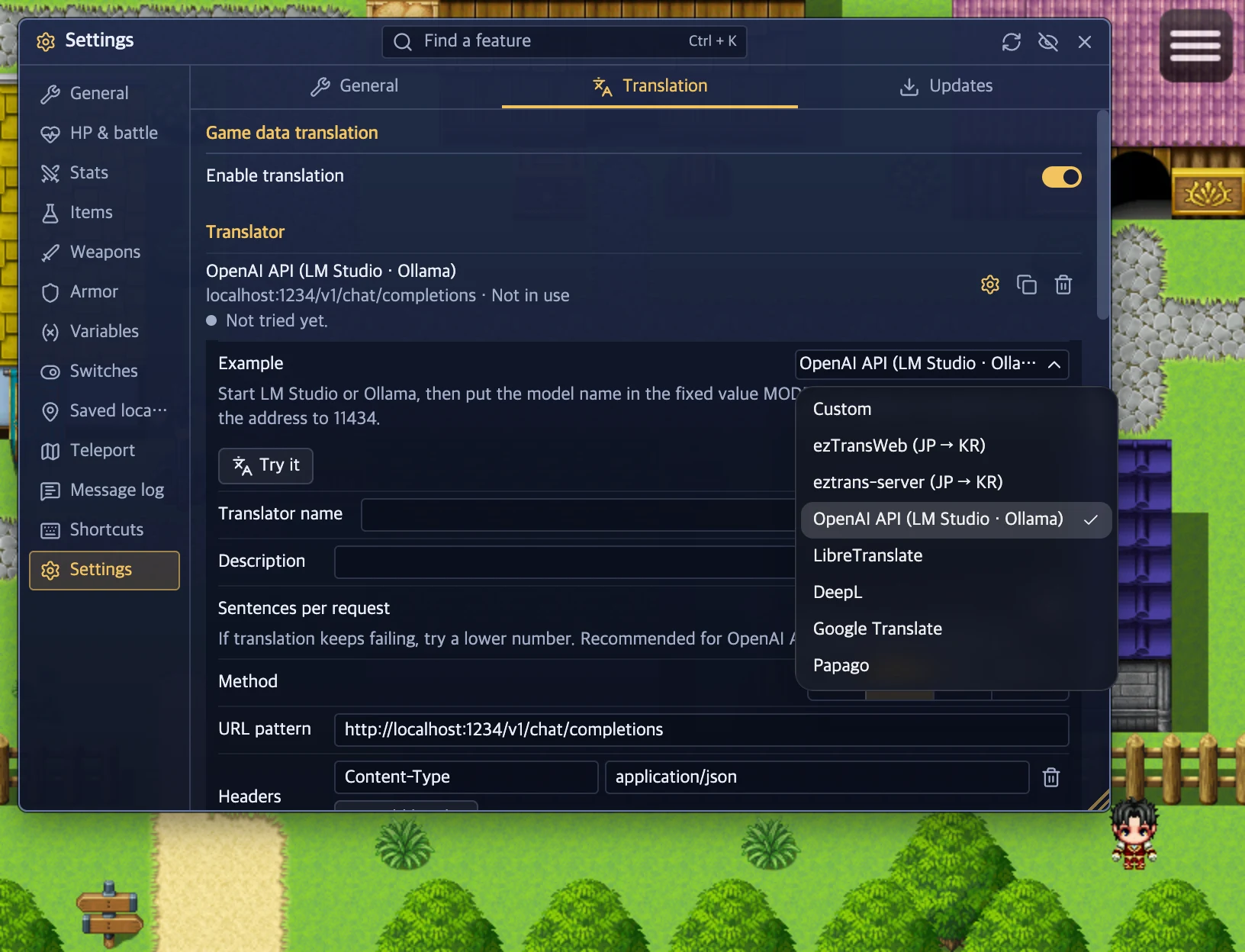
Translation
Connect the translator you use. Examples are built in for ezTrans, LM Studio, Ollama, LibreTranslate, DeepL, Google Translate and Papago, and other APIs work once you fill in the address and format. Translate the game screen or just the cheat panels. Results are saved and reused.
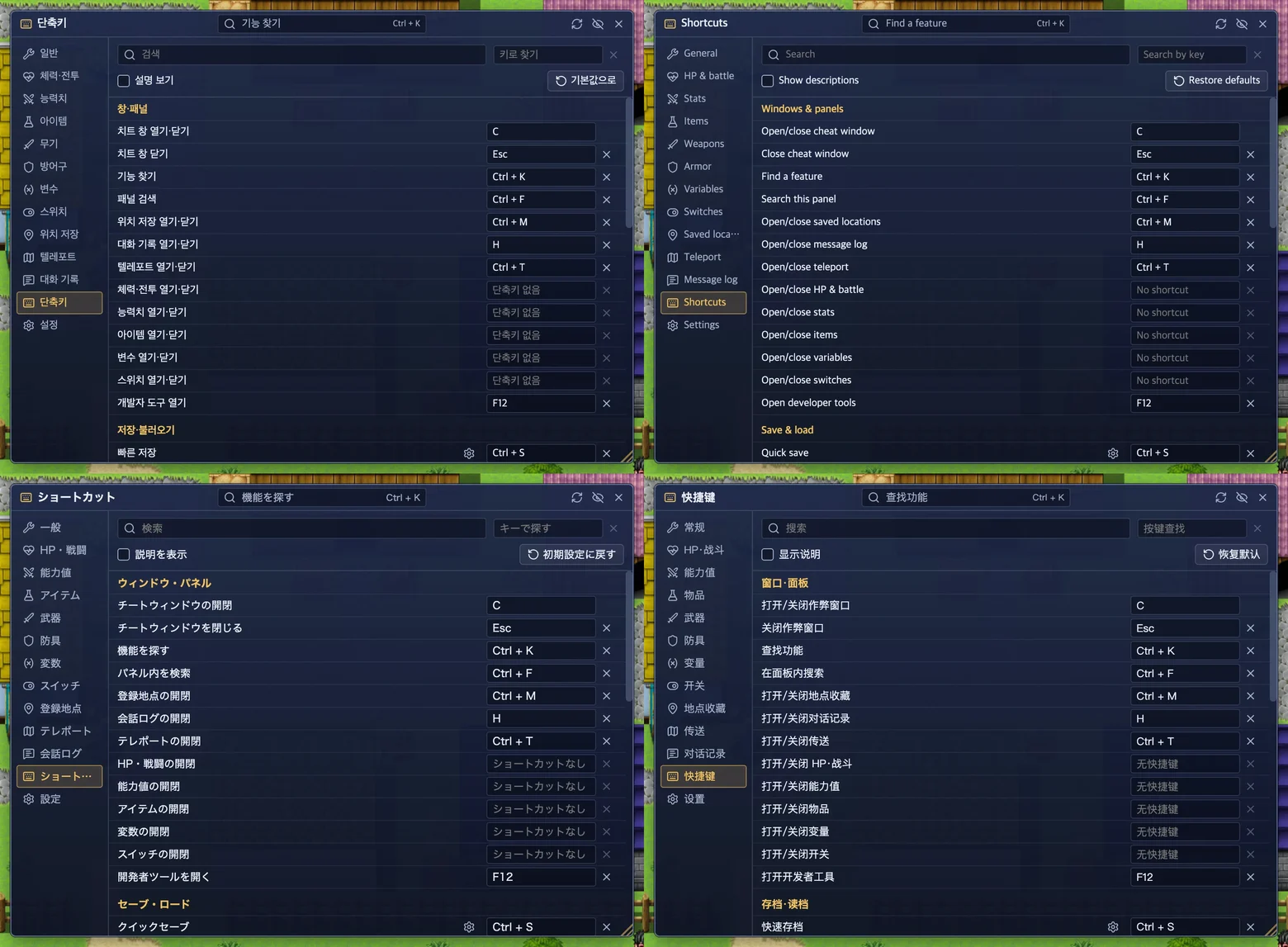
Four languages
The cheat window comes in Korean, English, Japanese and Simplified Chinese. Change it in Settings and it switches right away.
There’s more in the window: force a battle win, loss or escape, turn off random encounters, quick save and load, and back up your settings. It all runs without an internet connection.
How to use
- Start the game and press C. The cheat window opens in the top left.
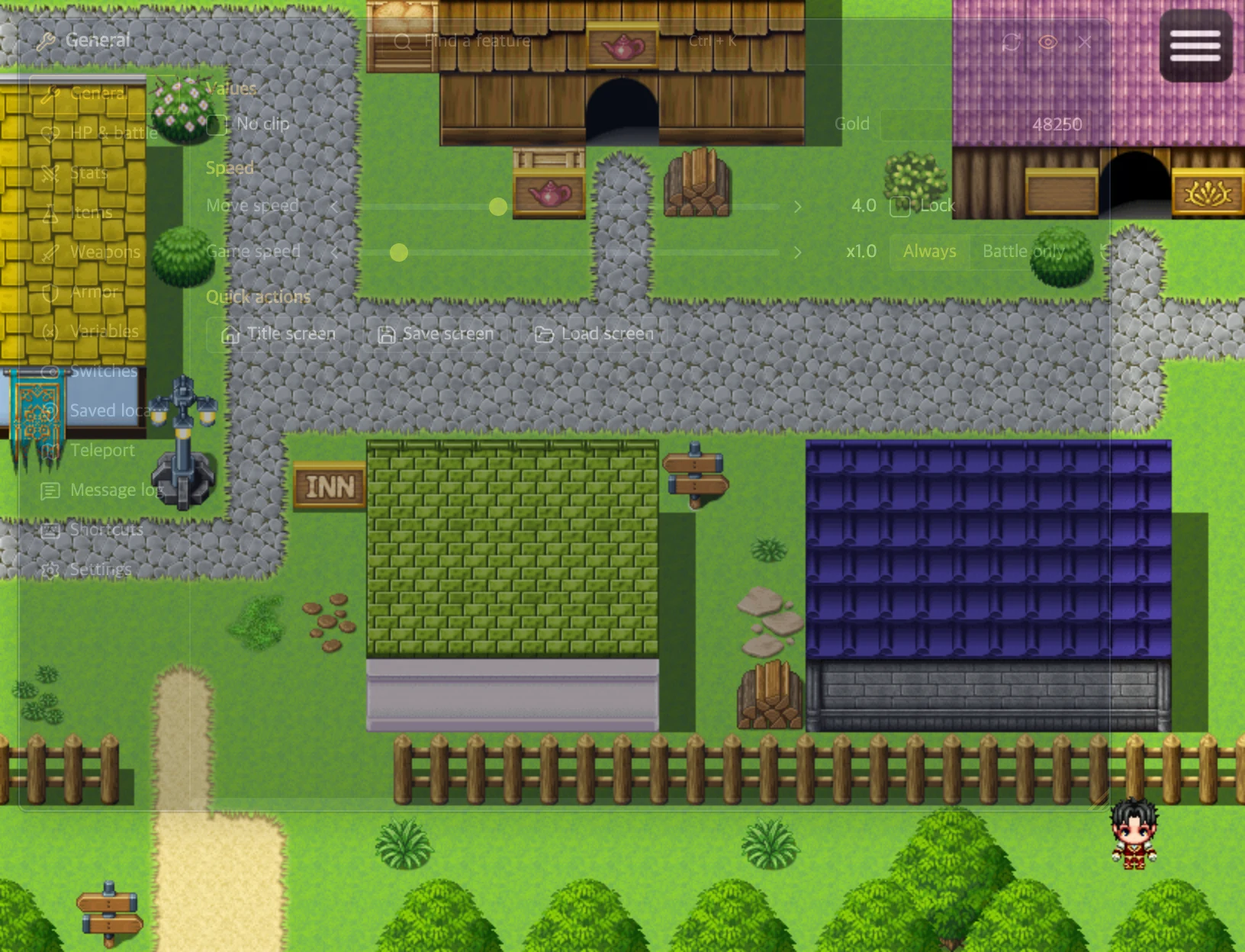
- Can’t see it? The window fades while your mouse is elsewhere. Move the mouse over the top left of the game and it comes back.
- Pick a panel on the left, or press Ctrl + K and search.
To stop the fading, turn off the eye button in the title bar.
When the game starts, the cheat checks for a new version and updates itself. You can turn this off in Settings > Updates.
Default keys
- C
- Open/close cheat window
- Esc
- Close cheat window
- Ctrl + K
- Find a feature
- Ctrl + F
- Search this panel
- H
- Open/close message log
- Ctrl + T
- Open/close teleport
- Ctrl + M
- Open/close saved locations
- W
- Turn no clip on/off
- S
- Skip messages (hold)
- Ctrl + S
- Quick save
- Ctrl + Q
- Quick load
If your game’s NW.js is older than 0.26.4
The cheat needs NW.js 0.26.4 or newer. On an older version you’ll see a warning when the game starts, and the cheat may not work properly. This mostly happens with older MV games.
The desktop app can update the game’s NW.js for you. Coming soon
Adding the cheat by hand
Prefer to do it yourself? This works without the page or the app.
- Find your engine in the table below, then download its zip from Releases.
- Unzip it into the folder in the table. A
cheatfolder andcheat-version-description.jsonappear there. - Copy
main.jssomewhere safe, then add the lines below to it. - Start the game and press C.
| MV | MZ | |
|---|---|---|
| Has this file | www/js/rpg_core.js | js/rmmz_core.js |
| Download | rpg-mv-cheat-{version}.zip | rpg-mz-cheat-{version}.zip |
| Unzip into | The www folder in the game folder | The game folder |
| File to edit | www/js/main.js | js/main.js |
For MV, add two lines right after PluginManager.setup($plugins);.
PluginManager.setup($plugins);
PluginManager._path = 'js/plugins/';
PluginManager.loadScript('../../cheat/init/import.js');
For MZ, add one line right after const scriptUrls = [.
const scriptUrls = [
    "cheat/init/import.js",
"js/libs/pixi.js",- If a line with
cheat/init/import.jsis already there, don’t add it again. - No
main.jsin the folder? The game is packed into a single file. Unpack it first. - To undo it, put your copy of
main.jsback and delete thecheatfolder andcheat-version-description.json.